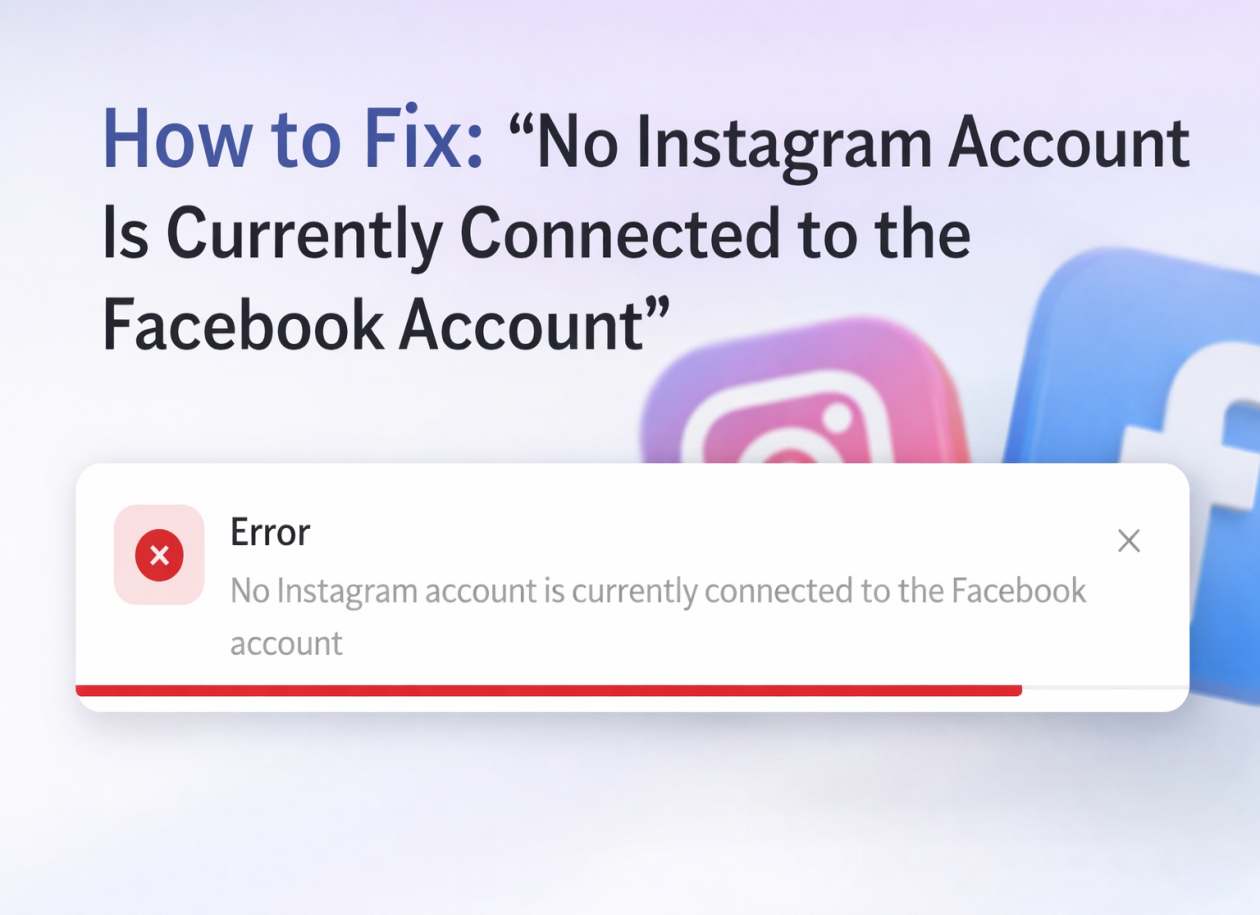
How to Fix: “No Instagram Account Is Currently Connected to the Facebook Account”
This error appears when an Instagram account is not properly connected to a Facebook Page at a Business level.
It is common when using Meta tools, schedulers, or custom apps.
This guide explains why it happens and exactly how to fix it, step by step.
You can check also the step by step video: https://www.youtube.com/watch?v=2dmOTL5P7Tg
Why This Error Happens
The most common reasons are:
-
The Instagram account is not a Business account
-
The Instagram account is not linked to a Facebook Page
-
The Facebook Page is not connected to the same Business Manager
-
You are logged into the wrong Facebook profile
-
You don’t have admin permissions
-
The connection exists but is broken or incomplete
Requirements (Before You Start)
Make sure you have:
-
An Instagram Business account
-
A Facebook Page
-
Admin access to:
-
The Facebook Page
-
The Meta Business Manager
-
-
The same Facebook profile used everywhere
Step-by-Step Fix
Step 1: Convert Instagram to a Business Account
-
Open the Instagram app
-
Go to Profile → Menu (☰) → Settings
-
Tap Account
-
Select Switch to Professional Account
-
Choose Business
-
Complete the setup
⚠️ Creator accounts often cause this issue. Use Business, not Creator.
Step 2: Connect Instagram to a Facebook Page (from Instagram)
-
Instagram app → Settings
-
Go to Business
-
Tap Connected Facebook Page
-
Log in to Facebook
-
Select the correct Facebook Page
-
Confirm
If no pages appear, you are not an admin on any page.
Step 3: Verify the Connection on Facebook Page
-
Open your Facebook Page
-
Go to Settings
-
Select Linked Accounts or Instagram
-
Confirm the Instagram account appears as connected
If not, click Connect Account and complete the login.
Step 4: Connect Instagram in Meta Business Manager (Critical Step)
-
Go to Meta Business Manager
-
Open Business Settings
-
Navigate to Accounts → Instagram Accounts
-
Click Add → Connect Instagram Account
-
Log in with Instagram credentials
-
Assign the Instagram account to the correct Facebook Page
⚠️ If the Page and Instagram are in different Business Managers, this will fail.
Step 5: Check Permissions
In Business Manager:
-
Go to Users → People
-
Select your profile
-
Ensure you have:
-
Admin access
-
Page access
-
Instagram account access
-
Without these, tools and apps will not detect the connection.
Common Mistakes to Avoid
-
Instagram account is Creator instead of Business
-
Instagram linked to the wrong Facebook Page
-
Facebook Page belongs to another Business Manager
-
Logging in with a non-admin Facebook profile
-
Old or broken connection that needs unlink & reconnect
How to Reset the Connection (If It’s Stuck)
-
Disconnect Instagram from Facebook (both sides)
-
Wait 5–10 minutes
-
Reconnect in this order:
-
Instagram → Facebook Page
-
Business Manager → Instagram Accounts
-
-
Re-authorize permissions
Final Checklist
✅ Instagram is Business
✅ Instagram is linked to the correct Facebook Page
✅ Page and Instagram are in the same Business Manager
✅ You are Admin everywhere
✅ Correct Facebook profile is used
Share: